
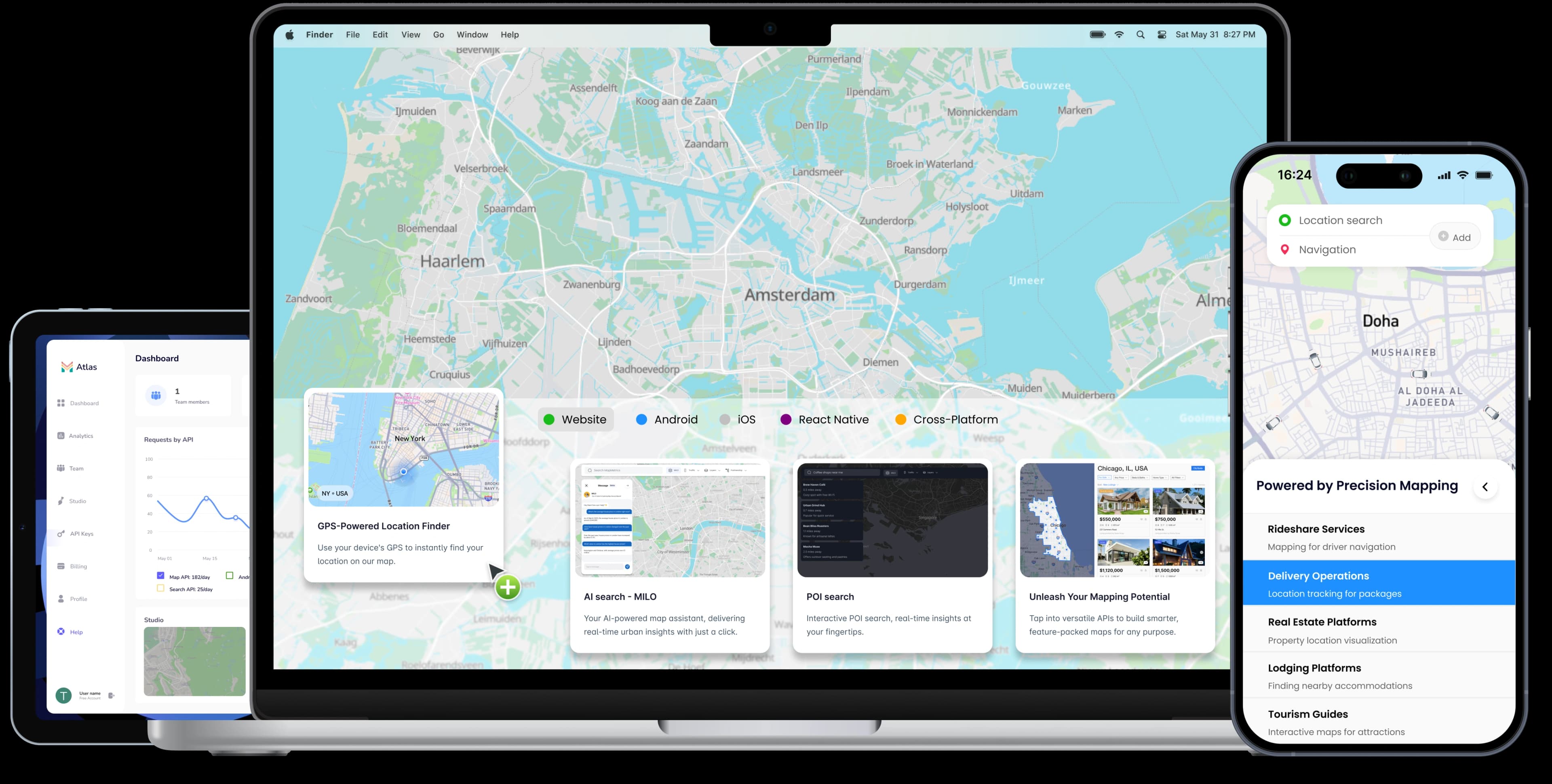
Adding interactive maps to your website has become a baseline expectation. Logistics dashboards track live vehicle positions, real estate apps surface neighbourhoods, food platforms draw delivery zones. This step-by-step JavaScript tutorial shows you exactly how to do it.
We cover the full stack: rendering your first map, adding markers and popups, wiring up address search with the Geocoding API, and integrating with React and Next.js.
By the end you will have:
- A live vector map initialised with your API key
- Interactive markers with clickable popup content
- Address search powered by the Geocoding API
- A reusable map component ready for React and Next.js
- Production performance tips you can apply immediately
What You Will Need
- A MapAtlas API key (sign up free, no credit card required)
- A JavaScript project: plain HTML, React, Vue, or Svelte all work
- Node.js 18+ if you are using npm
Your API key authenticates all MapAtlas services (tiles, geocoding, routing), so there is only one credential to manage.
Step 1: Install the SDK
Add the MapAtlas SDK to your project:
npm install @mapmetrics/mapmetrics-gl
For plain HTML pages, paste the CDN links into your <head>:
<link
  rel="stylesheet"
  href="https://unpkg.com/@mapmetrics/mapmetrics-gl/dist/mapmetrics-gl.css"
/>
<script src="https://unpkg.com/@mapmetrics/mapmetrics-gl/dist/mapmetrics-gl.js"></script>
The CSS import is required. Without it the map controls and popups render without any styling, which will look broken in production.
Step 2: Add a Map Container
Place a <div> wherever the map should appear. The SDK fills the exact dimensions of this element, so always set an explicit height:
<div id="map" style="width: 100%; height: 500px;"></div>
Forgetting to set a height is the most common setup mistake. If the container has height: 0, the map renders but is invisible. Always give it a fixed pixel or vh value.
Step 3: Render Your First Map
Initialise the map with your API key, a centre coordinate, and a zoom level:
import mapmetricsgl from '@mapmetrics/mapmetrics-gl';
import '@mapmetrics/mapmetrics-gl/dist/mapmetrics-gl.css';

const map = new mapmetricsgl.Map({
  container: 'map',
  style: 'https://tiles.mapatlas.eu/styles/basic/style.json?key=YOUR_API_KEY',
  center: [4.9041, 52.3676], // [longitude, latitude]
  zoom: 12,
});
Open the page and you will see a fully interactive vector map. Drag, scroll, and pinch to navigate. Tiles are fetched on demand from MapAtlas servers.
Picking a Map Style
Swap the path segment in the style URL to change the visual theme:
| Style | URL | Works best for |
|---|---|---|
| Basic | /styles/basic/style.json | General purpose apps |
| Bright | /styles/bright/style.json | Data visualisation |
| Dark | /styles/dark/style.json | Dashboards, night mode |
Use the Dark style for admin dashboards and tools used primarily at night. It reduces eye strain and makes data layers like heatmaps and route lines pop.
Step 4: Add Markers and Popups
A map without markers is just a background image. Here is how to place an interactive pin and attach content to it:
Single Marker with Popup
const popup = new mapmetricsgl.Popup().setHTML(`
  <strong>Amsterdam Central</strong>
  <p>Stationsplein, 1012 AB Amsterdam</p>
`);

new mapmetricsgl.Marker({ color: '#97C70A' })
  .setLngLat([4.9001, 52.3791])
  .setPopup(popup)
  .addTo(map);
Click the marker to open the popup. You can put any HTML inside: addresses, images, action buttons, whatever your UI needs.
Multiple Markers from an Array
Most apps need more than one pin. Loop over your data and call new Marker() for each location:
const locations = [
  { name: 'Amsterdam', coords: [4.9041, 52.3676] },
  { name: 'Rotterdam', coords: [4.4777, 51.9244] },
  { name: 'Utrecht',   coords: [5.1214, 52.0907] },
];

locations.forEach(({ name, coords }) => {
  const popup = new mapmetricsgl.Popup().setHTML(`<strong>${name}</strong>`);
  new mapmetricsgl.Marker({ color: '#97C70A' })
    .setLngLat(coords)
    .setPopup(popup)
    .addTo(map);
});
If you have more than 100 markers, enable clustering so the map stays responsive. The SDK supports GeoJSON source clustering out of the box. See the docs for the configuration.
Step 5: Add Address Search with the Geocoding API
The Geocoding API converts a text query (a street address, a city name, or a place) into coordinates you can pan to, mark, or pass to the routing API.
async function searchAddress(query) {
  const url = new URL('https://api.mapatlas.eu/geocoding/v1/search');
  url.searchParams.set('text', query);
  url.searchParams.set('key', 'YOUR_API_KEY');

  const res  = await fetch(url);
  const data = await res.json();

  if (!data.features.length) return;

  const [lng, lat] = data.features[0].geometry.coordinates;
  const label      = data.features[0].properties.label;

  // Fly to the result and drop a marker
  map.flyTo({ center: [lng, lat], zoom: 14 });

  new mapmetricsgl.Marker({ color: '#97C70A' })
    .setLngLat([lng, lat])
    .setPopup(new mapmetricsgl.Popup().setHTML(`<strong>${label}</strong>`))
    .addTo(map);
}

// Example usage
searchAddress('Rijksmuseum, Amsterdam');
Results are returned as GeoJSON features, which you can plug directly into any GeoJSON-aware visualisation, data table, or routing request.
Wire up an <input> element to searchAddress on the input or change event and you have a complete live search bar in under 30 lines of code.
Integrating with React
A Reusable Map Component
Wrap the map in a useEffect so it initialises after the DOM node is mounted, and clean up on unmount to avoid memory leaks:
import { useEffect, useRef } from 'react';
import mapmetricsgl from '@mapmetrics/mapmetrics-gl';
import '@mapmetrics/mapmetrics-gl/dist/mapmetrics-gl.css';

export function MapAtlasMap({
  apiKey,
  center = [4.9041, 52.3676],
  zoom   = 12,
}) {
  const containerRef = useRef(null);

  useEffect(() => {
    const map = new mapmetricsgl.Map({
      container: containerRef.current,
      style: `https://tiles.mapatlas.eu/styles/basic/style.json?key=${apiKey}`,
      center,
      zoom,
    });

    return () => map.remove(); // prevent memory leaks on re-render
  }, [apiKey]);

  return <div ref={containerRef} style={{ width: '100%', height: '500px' }} />;
}
Drop it anywhere in your component tree:
<MapAtlasMap
  apiKey={process.env.NEXT_PUBLIC_MAPATLAS_KEY}
  center={[4.9041, 52.3676]}
  zoom={13}
/>
Using with Next.js
The map SDK uses browser APIs (window, document) that are not available during server-side rendering. In Next.js, import the component dynamically with ssr: false:
import dynamic from 'next/dynamic';

const MapAtlasMap = dynamic(
  () => import('./MapAtlasMap').then(m => m.MapAtlasMap),
  {
    ssr: false,
    loading: () => (
      <div style={{ height: 500, background: '#f0f1f3', borderRadius: 12 }} />
    ),
  }
);
The loading skeleton keeps your layout stable while the bundle downloads, preventing layout shift when the map appears. Always provide a placeholder that matches the map dimensions.
Performance Best Practices
A few habits that separate a smooth, production-ready map from one that struggles at scale:
- Lazy-load maps below the fold: use
IntersectionObserverto initialise the map only when the container scrolls into view. Saves roughly 200 KB of JavaScript on initial load. - Use vector tiles, not raster: vector tiles scale cleanly to any screen density, load faster, and can be styled client-side. The MapAtlas style URLs serve vector tiles by default.
- Cluster large datasets: once you exceed 100 to 200 markers, enable clustering. Unclustered markers on a zoomed-out view cause severe rendering slowdowns.
- Store your API key server-side: never commit your key to a public repo. Use environment variables (
NEXT_PUBLIC_MAPATLAS_KEYin Next.js, or a backend proxy for anything sensitive). - Set
maxBounds: if your users only care about one region, restrict the map viewport so tiles outside that area are never requested.
What to Build Next
You now have a map that renders, places markers, searches addresses, and integrates cleanly with React. The next natural steps:
- Routing API: request turn-by-turn directions between two coordinates. Returns a route polyline plus distance and estimated travel time.
- Isochrone API: generate a polygon covering every point reachable within N minutes of travel. Used for delivery zones, coverage maps, and property catchment areas.
- Matrix API: calculate travel times and distances between multiple origins and destinations in a single request. Essential for fleet dispatch and logistics optimisation.
Full SDK reference, style documentation, and API guides are at docs.mapatlas.xyz.
Frequently Asked Questions
Can I add interactive maps to my website for free?
Yes. MapAtlas includes a free tier with no credit card required at sign-up. It covers vector tile rendering, the Geocoding API, and the routing API, enough for most development and small production use cases.
How do I embed a map in a React or Next.js app?
Wrap the map initialisation in a useEffect hook so it runs after the DOM mounts. In Next.js, use dynamic import with ssr: false to prevent server-side rendering errors. The guide above includes copy-paste examples for both frameworks.
What is a vector tile map and why is it better than raster?
Vector tiles are mathematical descriptions of map features (roads, buildings, labels) rather than pre-rendered images. They scale sharply to any screen resolution, load faster, and can be restyled client-side without additional server requests, making them the default choice for modern web map applications.
How many markers can I add before map performance degrades?
Performance typically degrades noticeably beyond 100 to 200 markers on a single view at full zoom-out. The solution is clustering: the MapAtlas SDK supports GeoJSON source clustering out of the box, which groups nearby markers at low zoom levels and keeps rendering smooth regardless of dataset size.
Do I need GIS knowledge to add a map to my app?
No. The MapAtlas JavaScript SDK is designed for web developers without GIS expertise. You initialise the map with coordinates and a zoom level, add markers with longitude/latitude pairs, and call the Geocoding API with plain text queries. No spatial database or GIS tooling required.